Bluetooth in Android and iOS apps
Connecting to a sensor, unlocking a lock or printing receipts. We show our Bluetooth apps and explain what development involves: Android and iOS support, older phones, connection loss and choosing libraries.
 Josef ZapletalSeptember 26, 20264 min read
- Bluetooth
- Android
- iOS
- KMP
- Choosing a technology
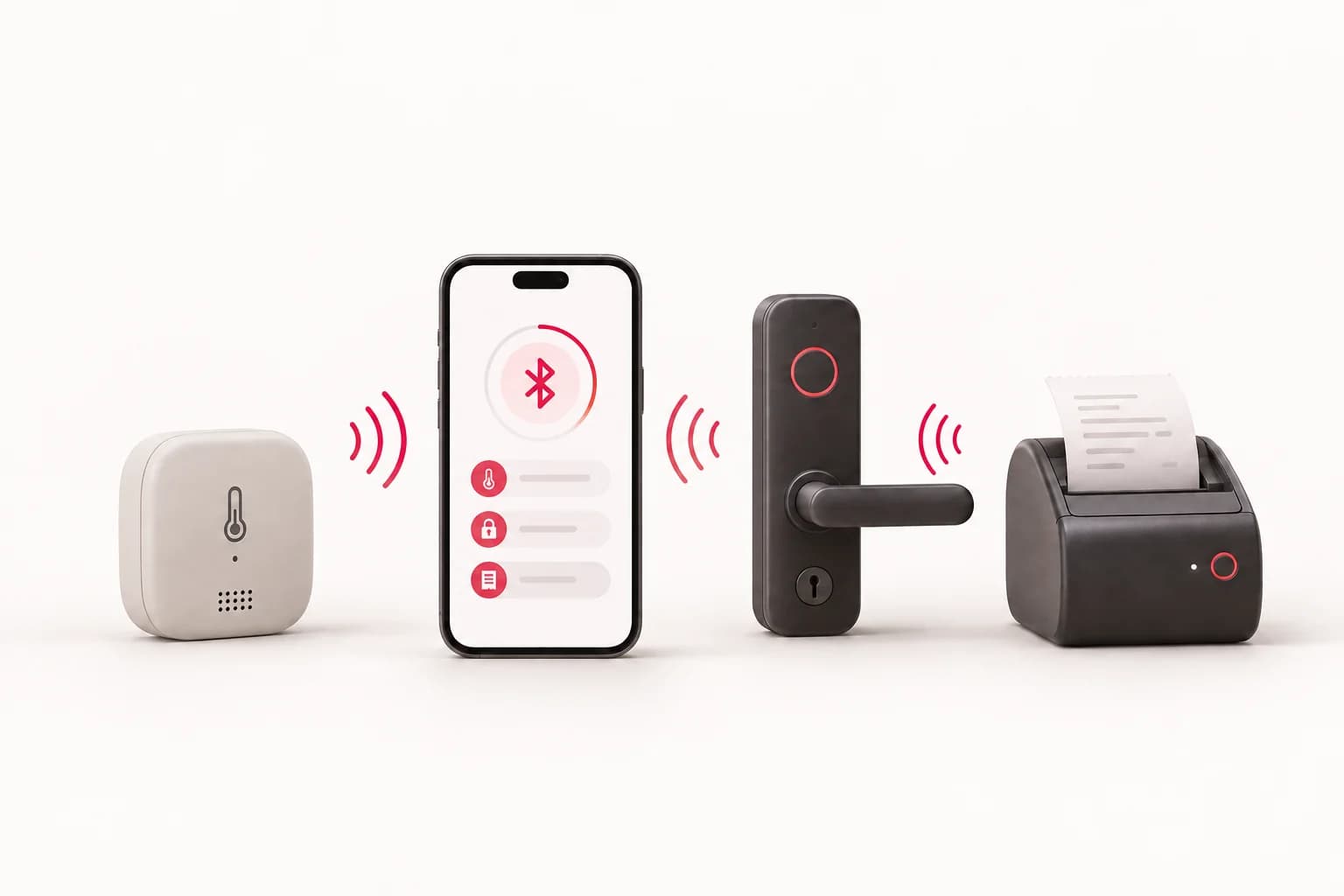
An app can use Bluetooth to read sensor data, unlock a lock or print receipts. During development, we handle the device connection, data transfer and what happens when the signal is lost.
We start by testing communication with the specific device on Android and iOS. This tells us what the hardware supports and how to design the app.
BLE or Bluetooth Classic?
Bluetooth Low Energy (BLE) is suitable for sensors, smart locks and other devices with low power consumption. An app can use it to receive measurements or send an unlock command, for example. Both Android and iOS support BLE. More about BLE.
Bluetooth Classic is found in devices such as older printers. Here, iPhone support needs to be checked. A printer that works with Android over the Serial Port Profile (SPP) may not work with iOS.
Some iOS accessories use the External Accessory framework and Apple's MFi certification. Standard BLE devices do not need this certification. We determine the specific options from the manufacturer's documentation and a connection test. Accessory support on iOS.
Our apps that communicate over Bluetooth
We have used Bluetooth in projects such as:
- OxiControl — Android. The app connects to a pulse oximeter. It displays oxygen saturation and pulse, saves measurements and sends alerts when readings exceed set thresholds.
- Thermeeno — Android. Receives temperature readings from sensors and saves measurement history. It supports multiple sensors and alerts users to a prolonged loss of connection.
- Star E-key and STAR Smart Master — iOS. The phone acts as an electronic key for smart door handles and locks.
- Conto Mobile — Android. A point-of-sale (POS) app in which we handled receipt printing over Bluetooth.

OxiControl: oximeter readings on your phone and alerts by email or SMS.
Why older Android phones sometimes cannot find a device
On Android 6–11, an app may need both location permission and location services turned on to scan for BLE devices. Without them, it may not find the sensor even when Bluetooth is on. The system requires this because nearby Bluetooth devices can reveal the phone's location. Details for older Android versions.
On Android 12 and later, current apps use separate permissions for nearby devices. The exact requirements also depend on the app's configuration. Android permissions overview.
We address these differences during development and testing. Users should receive clear instructions: grant a permission, turn on Bluetooth or move the device closer to the phone.
Staying connected with the phone locked
If the app needs to keep taking measurements while the phone is locked, we need to know during design. Android and iOS restrict background activity, and each system has different rules. Android options, app restoration on iOS.
For measurements, it is useful to show when the last reading was received and alert users to a lost connection. If the sensor can store data, the app can download it after reconnecting.
Why we recommend libraries for Bluetooth
We recommend using a proven library for BLE communication. It helps with connection errors, sending commands, receiving data and differences between Android versions. It also makes reconnecting and handling connection loss easier.
For example, the Nordic Android BLE Library handles connection retries, timeouts and transfer errors. It can be combined with the Android Scanner Compat Library to scan for devices on older Android versions. Another option for Android is RxAndroidBle.
On iOS, Core Bluetooth provides the foundation for BLE communication. Apps built with Kotlin Multiplatform can use a library such as Kable to share part of the communication code between Android and iOS.
We choose the library based on the device and the app's features. We then configure reconnection for the use case: continuous measurement needs a different approach from a lock or printer. We always test the result with the specific hardware.
For more on choosing a technology, see our comparison of app development platforms.
What to prepare before development
To get started, it helps to have:
- A device for testing. The specific sensor, lock, printer or other accessory the app will communicate with.
- Manufacturer documentation. A description of the communication protocol, a library or sample code, if available.
- A description of the use case. What the app should do, how many devices it will connect to and whether it needs to work with the phone locked.
- Behavior when the connection fails. What the app should do if the signal is lost or the device's battery runs out.
We have test phones at our studio. We first build a simple prototype to test the connection and data transfer.
If the app needs an accessory, we also arrange a way to test it during store review. We describe our experience with a smart lock in the article on App Store review.
Need to connect an app to your device? Get in touch. We will check the connection options and propose a solution.

Leads Android development. He started out with Microsoft technologies (.NET, C#) and today lives and breathes native Android and everything around it.
More about the team →Kotlin Multiplatform
We build Android and iOS apps with Kotlin Multiplatform. Experience from IKR-HZSZLK, OK Riders and Meteosource: shared logic and UI, tailored to each project.
Related projects

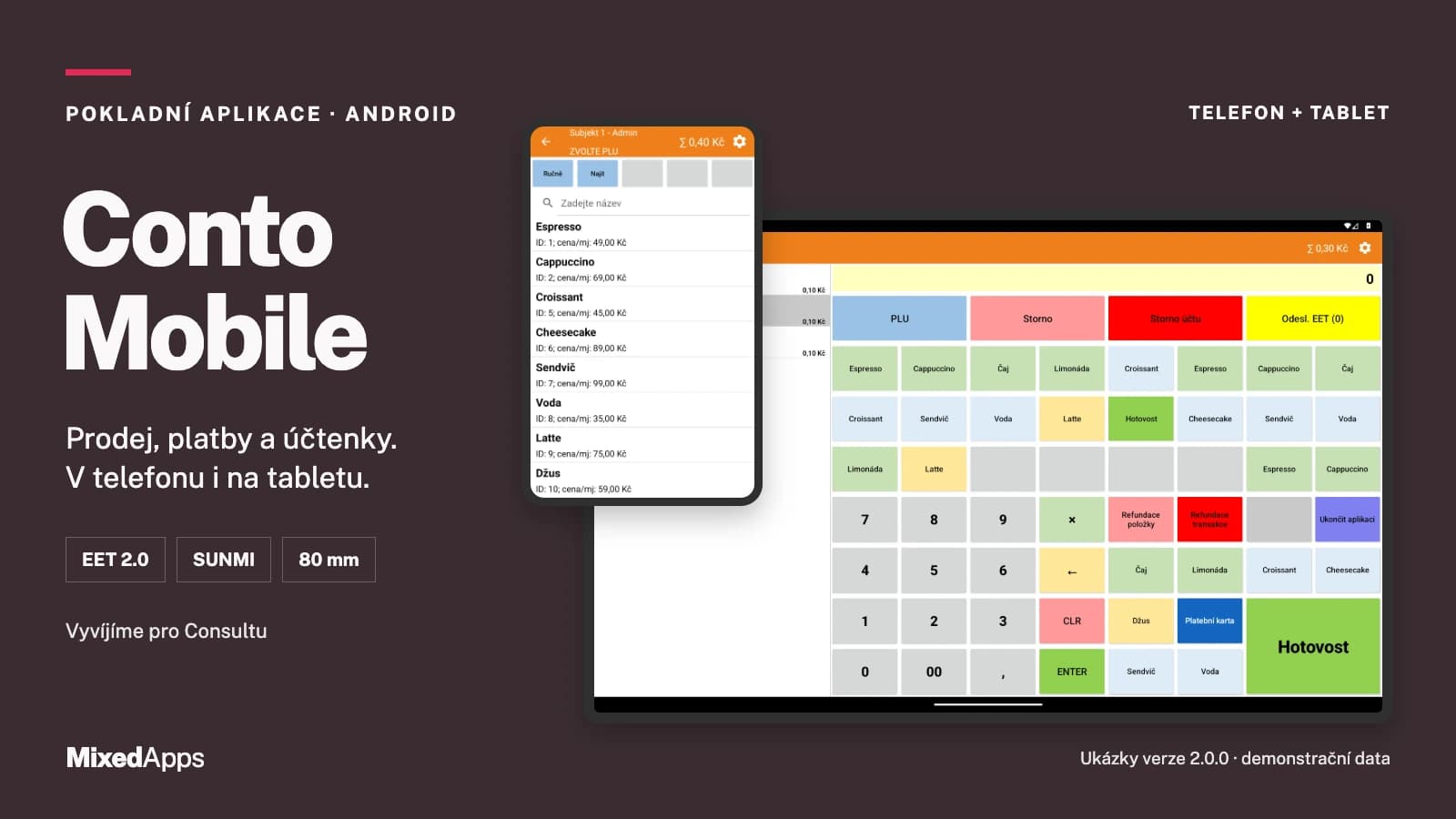
Conto Mobile — POS app for Android
From ringing up a sale to the receipt. A point of sale on your phone or tablet.
View project →
Thermeeno
The Thermeeno mobile app is a smart helper for measuring the temperature of everyone in your family gently and accurately.
View project →
Have an idea?
Leave us a message or give us a call — we'll get back to you promptly and discuss how to turn it into an app or website.